Agentic Page Assistant
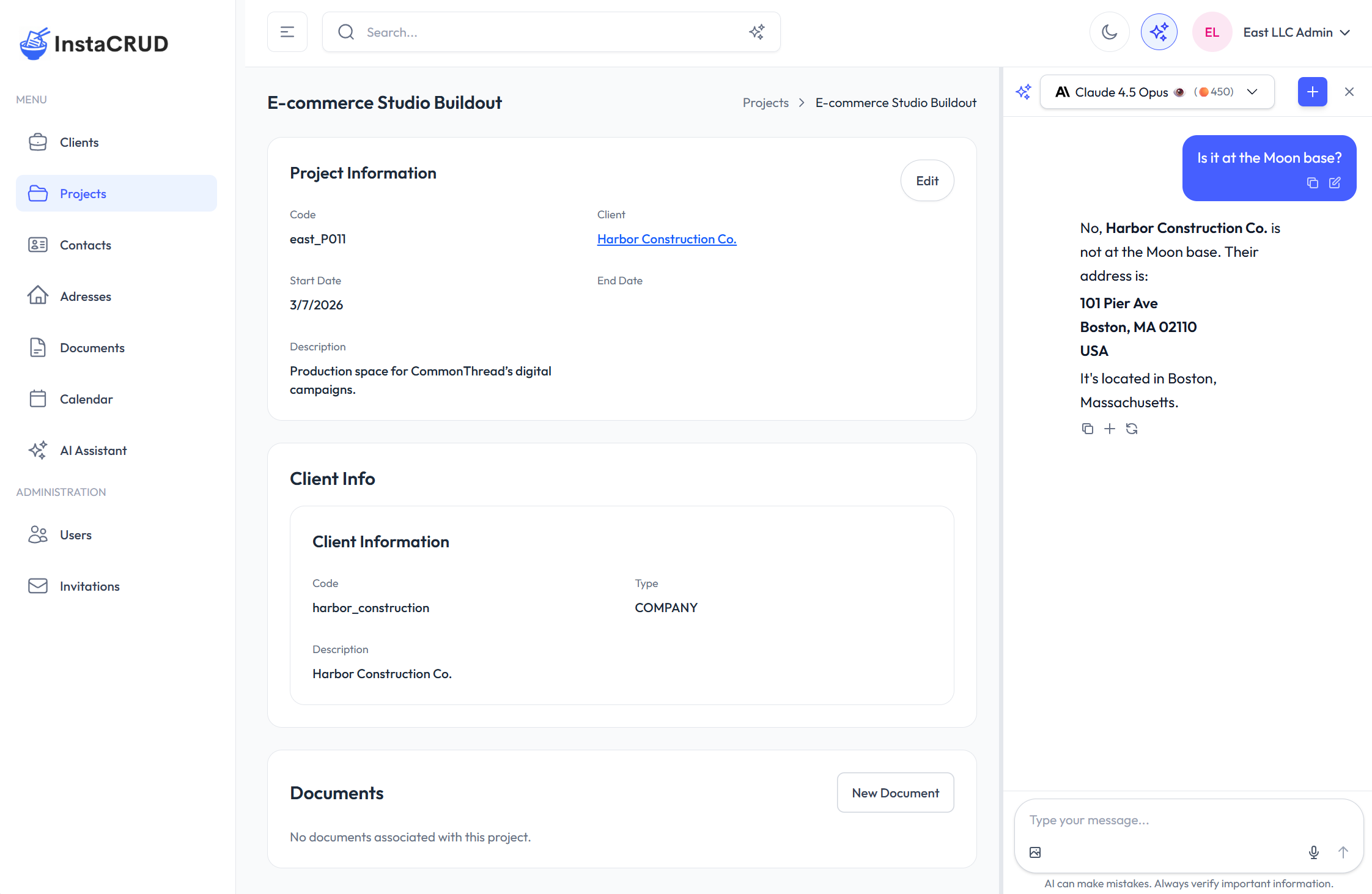
The Agentic Page Assistant is a contextual AI panel that opens alongside any page in InstaCRUD. Unlike the full-screen AI Assistant, which you visit separately, the agentic assistant stays right next to the content you're working on — and it already knows what's on the page.
Opening the Assistant
Click the sparkles icon (✦) in the top header bar on any page. The screen splits: your page content shifts to the left and the agentic assistant panel slides in from the right.
Click the icon again, or the × button inside the panel, to close it and return to full-width view.
The assistant button is not shown on the dedicated
/ai-assistantpage to avoid nesting two chat interfaces.
Context Awareness
The agentic assistant is context-aware — it reads what is currently displayed on the page and includes that data automatically in every message you send. You do not need to copy-paste records, IDs, or details; the assistant already has them.
Examples of what it knows when you open it:
| Page | Context injected |
|---|---|
| Client record | Client details, linked projects, contacts |
| Project | Project info, tasks, related data |
| Calendar | Visible events and date range |
| Document | Document metadata and content |
This context is refreshed live: if the page data changes while the panel is open, the next message you send picks up the updated state.
Resizing the Panel
Drag the vertical divider between the page content and the assistant panel to adjust the split. The panel can occupy between 20 % and 75 % of the screen width. Release the divider to lock the new size.
Chatting with the Assistant
Type your message in the input field at the bottom of the panel and press Enter (or click the send button). The agentic assistant will respond based on both your message and the current page context.
Model Selection
Use the model dropdown at the top of the panel to switch between available AI models. Model availability depends on your organization's tier — see AI Models & Tiers.
Starting a New Chat
Click New Chat in the panel header to begin a fresh conversation. The previous conversation is saved and remains accessible from the global AI Assistant.
Conversation History
Every chat you start in the agentic assistant is saved automatically and appears in the full conversation history inside the global AI Assistant.
To continue a panel conversation in the full-screen assistant:
- Navigate to AI Assistant from the sidebar.
- Open the conversation dropdown.
- Select the conversation — it will be listed with the page path it originated from (e.g.
/clients/123). - Continue chatting with the full assistant's capabilities, including agentic tool access and image generation.
The conversation is identical — the same messages, context, and model — just viewed in a larger interface.
Tips for Getting the Most from the Agentic Assistant
- Ask about what you see. "Summarize this client's recent activity" or "What projects are overdue?" work without any extra setup because the assistant has the data.
- Request agentic actions. Depending on your organization's configuration, the assistant can read and write data on your behalf — ask it to create a follow-up task, draft a note, or look up a related record.
- Use it iteratively. Start a conversation in the panel while reviewing a record, then continue it in the full AI Assistant if you need more screen space or want to use image generation.
- Start fresh per task. Click New Chat when switching to a different record or topic so the assistant doesn't carry over unrelated context.
Related
- AI Assistant — full-screen chat, image generation, reasoning mode
- AI Models & Tiers — available models and usage quotas